October 4, 2022 NHTSA CAMPAIGN NUMBER: 22V737000
Awning May Unintentionally Extend or Retract
An awning that unintentionally extends or retracts increases the risk of injury.
NHTSA Campaign Number: 22V737
Manufacturer Forest River , Inc.
Components EQUIPMENT, ELECTRICAL SYSTEM
Potential Number of Units Affected 962
Summary
Forest River, Inc. (Forest River) is recalling certain 2022-2023 Coachmen Beyond, Galleria, and Nova recreational vehicles, equipped with certain Multiplex Electronic Control Modules (ECM). The ECM software may cause the awning to unintentionally extend or retract when the vehicle is parked.
Remedy
Dealers will update the Electronic Control Module (ECM), free of charge. Owner notification letters were mailed October 24, 2022. Owners may contact Forest River customer service at 1-574-825-4995; Firefly customer service at 1-574-825-4600; or Coachmen customer service at 1-574-825-6319 or 574-825-6225. Forest River’s number for this recall is 225-1538.
Notes
Owners may also contact the National Highway Traffic Safety Administration Vehicle Safety Hotline at 1-888-327-4236 (TTY 1-800-424-9153), or go to www.nhtsa.gov.
This notice is sent to you in accordance with the requirements of the Motor Vehicle Safety Act. This notice is also sent in accordance with the requirements of the United States’ National Traffic and Motor Vehicle Safety Act. Firefly Integrations has decided that a defect, which relates to the motor vehicle safety, exists in certain 2022 through 2023 model year Coachmen Galleria, Nova, and Beyond Class B recreational vehicles Multiplex Electronic Control Module (ECM). This is to inform you that your vehicle may contain a defect that could affect the safety of a person.
WHAT IS THE DEFECT/NONCOMPLIANCE?
It has been determined that there may be a programming issue on the electronic control module (ECM) which can cause an interference event resulting in the awning unintentionally extending or retracting while the vehicle is parked.
EVALUATION OF THE RISK TO THE VEHICLE AND OPERATOR(S) RELATED TO THE RECALL.
There is a safety risk associated with unintentional awning extensions or retractions while the vehicle is parked, this may result in property damage, personal injury.
WHAT IS FIREFLY INTEGRATIONS GOING TO DO?
Firefly Integrations is providing the instructions to complete a self-installation update to resolve this issue. If you are not able to complete the update yourself, you have the option to complete the recall at an Authorized Forest River Dealer or Service Center. Firefly Integrations is notifying dealerships of the recall. It is preferable if you have your selling dealership perform the remedy. Firefly Integrations completely covers your cost for the remedy; you will not receive an invoice for anything covered under the above recall number.
WHAT SHOULD YOU DO?
The vehicle Owner is responsible for a self-installation or arranging to have the work completed.
- Remove the awning fuse until the update is complete (to avoid unanticipated deployments)
- Select an update option:
Option 1) Self-Installation Update. This involves uploading the update files to a USB stick, and transferring them to your RV per the attached instruction links, OR
Option 2) If you are not able to complete the update yourself; schedule an installation appointment with an authorized Forest River Dealer/Service Center.
If utilizing a dealer to complete the upload, please state you have been notified by Firefly Integrations of having a recall in process for your vehicle and provide the recall number for the dealership. It is also helpful to the dealership to have a copy of this letter when you take your vehicle in for the recall remedy.
You may also visit www.forestriverinc.com for dealer locations.
If you are not able to complete the self-installation update, and are not able make an appointment with a Forest River Service Center, please schedule an appointment with an RV Service Center of your choice. Provide the recall instructions to the service center at or before the time of your appointment.
3) Release your unit’s VIN from the Safety Recall list
Once the ECM update has been complete, clear this recall for your VIN by either: a) scanning the attached custom QR code (on page one of this recall notice) and following the confirmation instructions, OR b) by going to the website http://FireflyIntegrationsECMupdateRecall.com/ entering your VIN, and confirming that the ECM software has been updated.
This completes the process and clears this Safety Recall associated with your unit’s VIN.
If you take your RV to a dealer or service center under installation Option 2, the repair will be completed at NO CHARGE to you. The dealer or repair facility of your choice will contact Spyder Controls Corp. for payment by going to http://FireflyIntegrationsECMupdateRecall.com/ following the instructions, and uploading an invoice. This installation should take up to 0.5 hours complete. If you have any installation questions, contact Spyder Controls Corp. at 1-877-977- 2752 for additional information.
HOW LONG WILL THE REMEDY PROCESS TAKE?
The estimated time of repair is up to 0.5 hours. If a dealership is utilized to complete this update, the dealership may need to keep your vehicle for additional time or schedule an appointment with you for a later date to fit into their regular service schedule.
WHAT IF YOU HAVE PREVIOUSLY PAID FOR REPAIRS TO YOUR VEHICLE FOR THIS PARTICULAR CONDITION?
If you have already paid for a repair that is within the scope of this defect under recall, you still need to have this recall performed to ensure the correct upload and procedures were followed.
Additionally, you may be eligible for a refund of previously paid repairs. Refunds will only be provided for within the scope of this defect under recall.
To upload a service invoice you have already paid, go to http://FireflyIntegrationsECMupdateRecall.com/ enter your VIN number and upload the invoice and your mailing address to receive reimbursement.
WHAT IF YOU NO LONGER OWN THIS VEHICLE?
If you no longer own this vehicle and have the address for the current owner, please forward this letter to the new owner within 10 working days after the day in which the notice is received. You have received this letter because government regulations require that a notification is sent to the last known owner of record. Our records indicate that you are the current owner.
PLEASE NOTE: FEDERAL LAW REQUIRES THAT ANY VEHICLE LESSOR RECEIVING THIS RECALL NOTICE MUST FORWARD A COPY OF THIS NOTICE TO THE LESSEE WITHIN TEN DAYS.
MAY FOREST RIVER OR FIREFLY ASSIST YOU FURTHER?
If you have difficulties getting your vehicle repaired, please contact a representative listed below:
| CONTACT | PHONE | |
| Brandon Armstrong | 574-825-6319 | [email protected] |
| or | ||
| Billy Bontrager | 574-825-6225 | [email protected] |
| or | ||
| Neil Stephenson | 574-825-4600 | [email protected] |
If you are still having difficulty getting your vehicle’s ECM software updated in a reasonable amount of time or without charge, you may write to the following address:
For US Owners Please Contact:
Administrator
National Highway Traffic Safety Administration
1200 New Jersey Ave, S.E.
Washington, D.C. 20590
Or you may call the toll free Vehicle Safety Hotline at 1-888-327-4236 or (TTY: 1-800-424-9153).
Or visit www.safercar.gov and search; Recall ID: 22E070
For Canadian Owners Please Contact:
Head of Recalls
Motor Vehicle Safety Investigations Laboratory
Transport Canada
80 Noël street, Gatineau, Quebec, J8Z 0A1
Telephone (800) 333-0510
Facsimile (819) 420-4292
Recall ID: 2022-559
Coachman Recall ID 22E070 – Software Update Instructions
The following instructions are for the software update for your Coachman unit, to comply with US National Highway Transportation Safety Association (NHTSA) product safety recall, Campaign Number 22E070 and Transport Canada recall number 2022-559.
The software download and update should typically take approximately 15 minutes.
Supplies needed to complete the software update will be a USB flash drive.
USB 2.0 Flash Drive (typical)
The Electronic Control Module (ECM) software update is to be completed as follows:
Step 1 – Remove Awning Fuse In Your RV
Locate Fuse Panel
Open Fuse Panel and Locate Awning Fuse
Remove Awning Fuse From Fuse Panel
Note: Step One (fuse removal) should be completed immediately, and the fuse left out to prevent unintended awning activations – until the software update has been completed.
Step 2 – Download Software Update To A USB Flash Drive
- Use an empty USB 2.0 Flash Drive (32GB or less, formatted as FAT or FAT32) to transfer files.
- If you do not have a USB Flash Drive, you can request one at no charge from http://FireflyIntegrationsECMupdateRecall.com/
- Place the USB Flash Drive into the USB port on your computer (PC or Mac).
- Go to the recall website http://FireflyIntegrationsECMupdateRecall.com/ and select “Recall Update File” follow the download instructions, and download the update files to the USB Flash Drive.
- Click and drag the two files (named xxxxxx and xxxxxx) to your USB Flash Drive.
- Remove USB flash drive from your computer.
Step 3 – Remove Touch Screen To Access USB Port, and Insert USB Flash Drive
Locate Touch Screen
Place fingers on top edge of Touch Screen and apply pressure down and out
Remove Touch Screen from wall bracket
- Locate Touch Screen in your RV wall location.
- Place your fingers along top edge of the Touch Screen, apply pressure down and out to pop the Touch Screen out of its wall mount.
- Remove Touch Screen from wall bracket
- Remove Touch Screen from wall.
- Insert USB Flash Drive into USB port on the rear side of the Touch Screen.
Disconnect power for 5 seconds
Reconnect power
- Disconnect the power cable to the Touch Screen for five seconds (or more).
- Reconnect power cable and power up the Touch Screen.
Step 4 – Update ECM with onscreen prompts
Main screen view
Press manual load tab
Tap the first update
- From the main screen, tap the “Manual Load” tab.
- Tap the first update tab to begin the installation process (even if it says “No Update Required”).
Tap the second update
Exit the download screen
Exit the main screen
- Once status for the first update changes to “Update Successful”, tap the second update.
- Once both updates have finished, tap the “Exit” button at the bottom of the screen.
- Tap “Exit” button on main screen to exit out of all screens.
Confirmation screen
- After you exit all screens, a confirmation screen will appear.
Step 5 – Remove USB Flash Drive and Reinstall Touch Screen
Remove USB Flash Drive
Reinstall Touch Screen in its mount
Reinstall Touch Screen – push firmly in place
- Remove the USB Flash Drive from the Touch Screen.
- Reinstall Touch Screen by applying pressure at the corners and pushing it back in place.
Step 7 (Required) Clear Your Vehicle Identification Number (VIN) For This Recall
(Recall Website Screen Pic)
(Recall Website Screen Pic)
(Recall Website Screen Pic)
- Clear this recall for your VIN number by either: a) scanning the custom QR code (on page one of the recall notice letter) and following the confirmation instructions, OR b) by going to the website http://FireflyIntegrationsECMupdateRecall.com/ entering your VIN number, and confirming that the ECM software has been updated.
This concludes the ECM software update and clearing of your vehicle Identification number (VIN) in the national recall databases for this recall.
Service Centers, please submit service order or invoice for payment online at:
http://FireflyIntegrationsECMupdateRecall.com/
Note that Recall Verification must be completed. The service center labor reimbursement by VIN will automatically complete this process.
For any other questions or technical assistance, please call 1-877-977-2752.
Chronology :
On 10/3/2022, Forest River received a letter from Firefly Integrations regarding recall 22E070.
On 10/4/2022, Forest River filed a pass through recall with NHTSA and Transport Canada
Forest River is providing all pertinent information to Firefly to execute the recall. Firefly will providing all reporting to Forest River. Forest River will provide quarterly reporting to NHTSA and Transport Canada from the data supplied by Firefly.
22E070 – Awning may Unintentionally Extend or Retract – Firefly Multiplex Electronic Control Module (ECM)
6 Affected Products
Vehicles
| MAKE | MODEL | YEAR |
| COACHMEN | BEYOND | 2022-2023 |
| COACHMEN | GALLERIA | 2022-2023 |
| COACHMEN | NOVA | 2022-2023 |
8 Associated Documents
Recall Acknowledgement
RCAK-22V737-4275.pdf 653.818KB
Defect Notice 573 Report
RCLRPT-22V737-7502.PDF 215.572KB
Remedy Instructions and TSB
RCRIT-22V737-7509.pdf 1091.95KB
Remedy Instructions and TSB
RCRIT-22V737-0433.pdf 688.619KB
ISSUED Owner Notification Letter(Part 577)
RCONL-22V737-5234.pdf 266.978KB
Recall Quarterly Report #1, 2022-4
RCLQRT-22V737-4200.PDF 211.136KB
Recall Quarterly Report #2, 2023-1
RCLQRT-22V737-8774.PDF 211.234KB
Recall Quarterly Report #3, 2023-2
RCLQRT-22V737-2584.PDF 211.322KB
Latest Recalls Documents

- [Premium Construction &Durability] Crafted from 19.5oz heavy-duty &5-ply PVC vinyl, this rv replacement Awning resists wind, tears, and wear. With heat-pressed folded edges (1.18" width), this rv canopy replacement create a seamless, hole-free design for long-lasting outdoor performance in any conditions.
- [Ultimate Weather Protection] Our rv Awning fabric replacement with UPF 50+ blocks 95%+ of harsh sun rays and withstands up to water pressure to 2500mm, the camper Awning help you stay cool and comfortable in all weather.
- [Quick & Easy Installation] Simply slide the poly cord into your RV's existing Awning track—no prior experience requires with our van awning, even for first-time DIYers. The user-friendly manual guide you through a quick, stress-free setup—get it done in no time!
- [Sizing Guide] Our replacement fabric for rv awnings are available in sizes 9'2"–20'2" to fit most RVs. Please be sure to measure measure the distance between the center of the Awning arms from left to right to choose the right size. Eg.If your tralier Awning size is 16', then choose the 16FT(fabric 15'2")for your Awning for camper.
- [Reliable Customer Service]Our camper Awning replacement includes a repair patch and pull strap. Backed by a 1-year warranty and dedicated customer support team for worry-free ownership.

- Upgraded Fabric: It features our premium 4-layer vinyl awning fabric with a proprietary formula that is engineered to be softer and to resist cracking, fading and brittleness caused by the sun. Its reinforced thickness prevents tears and holes, significantly extending its lifespan by 3–5 years compared to standard rv awning fabrics.
- UV Protection & Waterproof: An engineered 100% waterproof barrier repels rain, a high UPF 50+ rating combats sun fading and freeze-resistant technology (-50°F) prevents cracks in cold weather, delivering Xenjum's rv awning fabric replacement unmatched all-season durability.
- Hot-pressing Tech & Built to Last: Advanced hot-pressing technology ensures a seamless, leakproof bond, eliminating weak seams for our camper awning fabric. Combined with integrated 1000D super-dense Denier netting for our rv awning canopy, it significantly extends lifespan and reduces the hassle of frequent replacements.
- Quick Install & Complete Kit: Pre-sewn 3 polycords eliminate complicated threading – installs quickly with no special tools required. You can get 1 RV awning fabric replacement, 1 pull strap, 1 fabric repair patch, 36-month worry-free warranty, and 24/7 dedicated customer support.
- Note Before Purchase: The fixed width of this awning fabric replacement is 8'6"(incl. valance), with lengths available from 9'2" to 20'2". Please measure the distance between the center of the right and left awning arms to select the suitable size fabric replacement for your rv awning. Eg: If your trailer awning size is 16', choose the size 16'(fabric 15'2”).
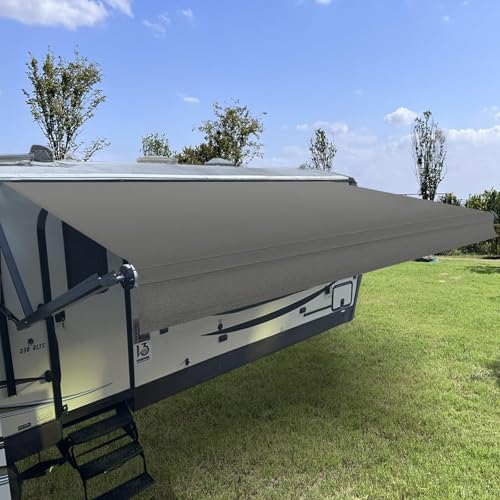
- Upgraded Premium Fabric:SHADEPLUS camper awning replacement features 19.5oz 5-layer vinyl fabric with excellent UV protection and waterproof performance. Built with 1250D tight mesh, it stands up to extreme heat, heavy rain and all kinds of harsh conditions. The material stays intact without cracking or tearing even at -40°F, boasting superior strength and long-lasting durability.
- Great UV shielding &waterproof:Our RV awning replacement fabric blocks 98% of UV rays. It creates a shaded area of 7.7ft × 15.2ft, which effectively reduces interior heat and cuts down energy consumption of your RV. With a waterproof rating of 2500mm, it holds up well against sudden heavy rains. Adaptable to all weather conditions, it makes your RV trips more pleasant and comfortable.
- EASY TO INSTALL:Easy installation with no tools required. Simply slide the three sewn-in polycords on the awning fabric into their respective RV awing guide rail, and the RV awning fabric will be securely in place.
- DESIGNED FOR YOUR RV AWNING:The RV awning fabric is an ideal replacement for your old or damaged awning fabric.This RV awning fabric replacement designed specifically for RV awnings. It is compatible with most brands of awnings available in the market, such as Carefree, Dometic, Lippert etc.
- HOW TO CHOOSE RIGHT SIZE:To ensure the correct awning fabric replacement size for your RV, camper, or motorhome, please carefully measure the distance between the center line of the two awning arms before making a purchase.Actual finished awning fabric measurement of 15'2" is fit for 16’ RV Awning.Tips:The awning fabric is 0.8ft shorter than the distance between awning arms.
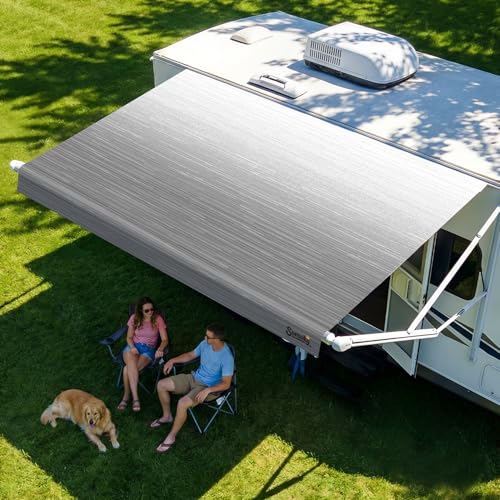
- NO MORE STITCHING & PINHOLE FRUSTRATION - Upgrade to a seamless look with our heat-sealed edges, which replaces traditional threads with thermal bonding to eliminate fraying and seam leaks. Combined with a specialized softening treatment, our rv awning fabric resists cracks and pinholes at fold lines, ensuring a completely light-tight awning fabric.
- 5X LONGER LIFESPAN FABRIC - Our 19.5oz heavy-duty vinyl awning fabric is 30% thicker than the standard, featuring a 1200D high-tenacity mesh for ultimate tear resistance. With reinforced stress points, this rugged construction is built to handle the unexpected gust of wind at the campground, giving you peace of mind season after season.
- ALL-WEATHER PROTECTION - Our camper awning provides UPF 50+ protection, reducing the UV index by 86% for a noticeably cooler shade. It's 100% waterproof, ensuring a bone-dry shelter even at the seams during heavy storms. Plus, it withstands temperatures as low as -40°F without cracking, making it perfect for year-round adventures.
- PRECISION FIT & EASY DIY INSTALL - Designed to perfectly fit most RV awning brands like Dometic, Carefree, and Lippert, each fabric is laser-cut for perfect square edges and a precise size. The 8.6ft extra-wide upgrade ensures a full extension for maximum shade. With pre-installed polycords, this DIY-friendly camper awning fabric slides into the tracks easily for a quick-install.
- UNIQUE PATTERNS & EASY CARE - Make your RV stand out with our exclusive designer patterns that look great and naturally hide road dust and grime. The premium finish is stain-resistant and incredibly easy to clean—just a quick rinse or wipe keeps it looking brand new. Backed by our dedicated customer support, we're here to make sure you're 100% happy with our rv awning fabric replacement.

- NO MORE STITCHING & PINHOLE FRUSTRATION - Upgrade to a seamless look with our heat-sealed edges, which replaces traditional threads with thermal bonding to eliminate fraying and seam leaks. Combined with a specialized softening treatment, our rv awning fabric resists cracks and pinholes at fold lines, ensuring a completely light-tight awning fabric.
- 5X LONGER LIFESPAN FABRIC - Our 19.5oz heavy-duty vinyl awning fabric is 30% thicker than the standard, featuring a 1200D high-tenacity mesh for ultimate tear resistance. With reinforced stress points, this rugged construction is built to handle the unexpected gust of wind at the campground, giving you peace of mind season after season.
- ALL-WEATHER PROTECTION - Our camper awning provides UPF 50+ protection, reducing the UV index by 86% for a noticeably cooler shade. It's 100% waterproof, ensuring a bone-dry shelter even at the seams during heavy storms. Plus, it withstands temperatures as low as -40°F without cracking, making it perfect for year-round adventures.
- PRECISION FIT & EASY DIY INSTALL - Designed to perfectly fit most RV awning brands like Dometic, Carefree, and Lippert, each fabric is laser-cut for perfect square edges and a precise size. The 8.6ft extra-wide upgrade ensures a full extension for maximum shade. With pre-installed polycords, this DIY-friendly camper awning fabric slides into the tracks easily for a quick-install.
- UNIQUE PATTERNS & EASY CARE - Make your RV stand out with our exclusive designer patterns that look great and naturally hide road dust and grime. The premium finish is stain-resistant and incredibly easy to clean—just a quick rinse or wipe keeps it looking brand new. Backed by our dedicated customer support, we're here to make sure you're 100% happy with our rv awning fabric replacement.
SEOCONTENT-START
Coachman Recall ID 22E070 – Software Update Instructions Page | 1 Revision 0 October 4, 2022 The following instructions are for the software update for your Coachman unit, to comply with US National Highway Transportation Safety Association (NHTSA) product safety recall, Campaign Number 22E070 and Transport Canada recall number 2022-559. The software download and update should typically take approximately 15 minutes. Supplies needed to complete the software update will be a USB flash drive. USB 2.0 Flash Drive (typical) The Electronic Control Module (ECM) software update is to be completed as follows: Step 1 – Remove Awning Fuse In Your RV Locate Fuse Panel Open Fuse Panel and Locate Awning Fuse Remove Awning Fuse From Fuse Panel Note: Step One (fuse removal) should be completed immediately, and the fuse left out to prevent unintended awning activations – until the software update has been completed. Step 2 – Download Software Update To A USB Flash Drive • Use an empty USB 2.0 Flash Drive (32GB or less, formatted as FAT or FAT32) to transfer files. Coachman Recall ID 22E070 – Software Update Instructions Page | 2 Revision 0 October 4, 2022 • If you do not have a USB Flash Drive, you can request one at no charge from http://FireflyIntegrationsECMupdateRecall.com/ • Place the USB Flash Drive into the USB port on your computer (PC or Mac). • Go to the recall website http://FireflyIntegrationsECMupdateRecall.com/ and select “Recall Update File” follow the download instructions, and download the update files to the USB Flash Drive. • Click and drag the two files (named xxxxxx and xxxxxx) to your USB Flash Drive. • Remove USB flash drive from your computer. Step 3 – Remove Touch Screen To Access USB Port, and Insert USB Flash Drive Locate Touch Screen Place fingers on top edge of Touch Screen and apply pressure down and out Remove Touch Screen from wall bracket • Locate Touch Screen in your RV wall location. • Place your fingers along top edge of the Touch Screen, apply pressure down and out to pop the Touch Screen out of its wall mount. • Remove Touch Screen from wall bracket Remove Touch Screen from wall Insert USB Flash Drive USB Flash Drive inserted • Remove Touch Screen from wall. • Insert USB Flash Drive into USB port on the rear side of the Touch Screen. Coachman Recall ID 22E070 – Software Update Instructions Page | 3 Revision 0 October 4, 2022 Disconnect power for 5 seconds Reconnect power • Disconnect the power cable to the Touch Screen for five seconds (or more). • Reconnect power cable and power up the Touch Screen. Step 4 – Update ECM with onscreen prompts Main screen view Press manual load tab Tap the first update • From the main screen, tap the “Manual Load” tab. • Tap the first update tab to begin the installation process (even if it says “No Update Required”). Tap the second update Exit the download screen Exit the main screen • Once status for the first update changes to “Update Successful”, tap the second update. • Once both updates have finished, tap the “Exit” button at the bottom of the screen. • Tap “Exit” button on main screen to exit out of all screens. Coachman Recall ID 22E070 – Software Update Instructions Page | 4 Revision 0 October 4, 2022 Confirmation screen • After you exit all screens, a confirmation screen will appear. Step 5 – Remove USB Flash Drive and Reinstall Touch Screen Remove USB Flash Drive Reinstall Touch Screen in its mount Reinstall Touch Screen – push firmly in place • Remove the USB Flash Drive from the Touch Screen. • Reinstall Touch Screen by applying pressure at the corners and pushing it back in place. Step 6 – Replace Awning Fuse • Replace awning fuse which was removed in Step 1. Step 7 (Required) Clear Your Vehicle Identification Number (VIN) For This Recall (Recall Website Screen Pic) (Recall Website Screen Pic) (Recall Website Screen Pic) • Clear this recall for your VIN number by either: a) scanning the custom QR code (on page one of the recall notice letter) and following the confirmation instructions, OR b) by going to the website Coachman Recall ID 22E070 – Software Update Instructions Page | 5 Revision 0 October 4, 2022 http://FireflyIntegrationsECMupdateRecall.com/ entering your VIN number, and confirming that the ECM software has been updated. This concludes the ECM software update and clearing of your vehicle Identification number (VIN) in the national recall databases for this recall. Service Centers, please submit service order or invoice for payment online at: http://FireflyIntegrationsECMupdateRecall.com/ Note that Recall Verification must be completed. The service center labor reimbursement by VIN will automatically complete this process. For any other questions or technical assistance, please call 1-877-977-2752.
**************************************************************************************************************
Coachman Recall – Software Update Instructions Page | 1 Revision 0 October 19, 2022 The following instructions are for the software update for your Coachman unit, to comply with US National Highway Transportation Safety Association (NHTSA) product safety recall, Campaign Number 22E070 and Transport Canada recall number 2022-559. This campaign applies to 2022 through 2023 model year Coachmen Galleria, Nova, and Beyond Class B recreational vehicles. The software download and update should typically take approximately 15 minutes. Supplies needed to complete the software update will be a USB flash drive. USB 2.0 Flash Drive (typical) The Electronic Control Module (ECM) software update is to be completed as follows: Step 1 – Remove Awning Fuse In Your RV Locate Fuse Panel Open Fuse Panel and Locate Awning Fuse Remove Awning Fuse From Fuse Panel Note: Step One (fuse removal) should be completed immediately, and the fuse left out to prevent unintended awning activations – until the software update has been completed. Step 2 – Download Software Update To A USB Flash Drive • Use an empty USB 2.0 Flash Drive (32GB or less, formatted as FAT or FAT32) to transfer files. Coachman Recall – Software Update Instructions Page | 2 Revision 0 October 19, 2022 • If you do not have a USB Flash Drive, you can request one at no charge from http://FireflyIntegrationsECMupdateRecall.com/ • Place the USB Flash Drive into the USB port on your computer (PC or Mac). • Go to the recall website http://FireflyIntegrationsECMupdateRecall.com/ enter your VIN and hit the “Search” button; then hit the “Download Update” button, click (open) the “USB-Software-Update” zip file, then drag the downloaded “SpyderConfig” folder to the USB Flash Drive. • Remove USB flash drive from your computer. Step 3 – Remove Touch Screen To Access USB Port, and Insert USB Flash Drive Locate Touch Screen Place fingers on top edge of Touch Screen and apply pressure down and out Remove Touch Screen from wall bracket • Locate Touch Screen in your RV wall location. • Place your fingers along top edge of the Touch Screen, apply pressure down and out to pop the Touch Screen out of its wall mount, and remove from wall. Remove Touch Screen from wall Insert USB Flash Drive USB Flash Drive inserted • Insert USB Flash Drive into USB port on the rear side of the Touch Screen. Coachman Recall – Software Update Instructions Page | 3 Revision 0 October 19, 2022 Disconnect power for 5 seconds Reconnect power • Disconnect the power cable to the Touch Screen for five seconds (or more). • Reconnect power cable to power up the Touch Screen. Step 4 – Update ECM with onscreen prompts Main screen view Press manual load tab Tap the first update • From the main screen, tap the “Manual Load” tab. • Tap the first update tab to begin the installation process (even if it says “No Update Required”). Tap the second update Exit the download screen Exit the main screen • Once status for the first update changes to “Update Successful”, tap the second update. • Once both updates have finished, tap the “Exit” button at the bottom of the screen. • Tap “Exit” button on main screen to exit out of all screens. Coachman Recall – Software Update Instructions Page | 4 Revision 0 October 19, 2022 Confirmation screen • After you exit all screens, a confirmation screen will appear. Step 5 – Remove USB Flash Drive and Reinstall Touch Screen Remove USB Flash Drive Reinstall Touch Screen in its mount Reinstall Touch Screen – push firmly in place • Remove the USB Flash Drive from the Touch Screen. • Reinstall Touch Screen by applying pressure at the corners and pushing it back in place. Step 6 – Replace Awning Fuse • Replace awning fuse which was removed in Step 1. Coachman Recall – Software Update Instructions Page | 5 Revision 0 October 19, 2022 Step 7 (Required) Clear Your Vehicle Identification Number (VIN) For This Recall Website Homepage for VIN Declaration Page Screen will verify Recall Complete • Clear this recall for your VIN number by either: a) scanning the custom QR code (on page one of the recall notice letter) and following the confirmation instructions, OR b) by going to the website http://FireflyIntegrationsECMupdateRecall.com/ entering your VIN number, and confirming that the ECM software has been updated (Step 2). This is accomplished by opening the “Step 2: Declare Install Complete” box, checking the white square ahead of the “I declare… ” statement, then hitting the blue “Submit” button. • Once the declaration page is complete, a green box with a check mark and a “Recall Complete” verification will appear on the screen. • Once you see the “Recall Complete” verification, the recall on your unit is now complete and your VIN number will be automatically cleared with NHTSA and Transport Canada. This concludes the ECM software update and clearing of your vehicle Identification number (VIN) in the national recall databases for this recall. Service Centers, please submit service order or invoice for payment online (after recall complete step) at: http://FireflyIntegrationsECMupdateRecall.com/ For any other questions or technical assistance, please call 1-877-977-2752.
**************************************************************************************************************
IMPORTANT SAFETY RECALL Page 1 of 3 DEPARTMENT OF COMPLIANCE VEHICLE SAFETY AND RECALL MANAGEMENT BUILDING 11 PO Box 30MIDDLEBURY, INDIANA 46540-9218 NHTSA RECALL: 22E070 CANADA RECALL: 2022-559 FR ID: 225-1558 / 22V737 <> <> <
> <>, <> <> O Integrity O Safety O Quality O Customer Service <> This Notice applies to your vehicle VIN listed above. Dear Firefly Integrations Customer: This notice is sent to you in accordance with the requirements of the Motor Vehicle Safety Act. This notice is also sent in accordance with the requirements of the United States’ National Traffic and Motor Vehicle Safety Act. Firefly Integrations has decided that a defect, which relates to the motor vehicle safety, exists in certain 2022 through 2023 model year Coachmen Galleria, Nova, and Beyond Class B recreational vehicles Multiplex Electronic Control Module (ECM). This is to inform you that your vehicle may contain a defect that could affect the safety of a person. WHAT IS THE DEFECT/NONCOMPLIANCE? It has been determined that there may be a programming issue on the electronic control module (ECM) which can cause an interference event resulting in the awning unintentionally extending or retracting while the vehicle is parked. EVALUATION OF THE RISK TO THE VEHICLE AND OPERATOR(S) RELATED TO THE RECALL. There is a safety risk associated with unintentional awning extensions or retractions while the vehicle is parked, this may result in property damage, personal injury. WHAT IS FIREFLY INTEGRATIONS GOING TO DO? Firefly Integrations is providing the instructions to complete a self-installation update to resolve this issue. If you are not able to complete the update yourself, you have the option to complete the recall at an Authorized Forest River Dealer or Service Center. Firefly Integrations is notifying dealerships of the recall. It is preferable if you have your selling dealership perform the remedy. Firefly Integrations completely covers your cost for the remedy; you will not receive an invoice for anything covered under the above recall number. WHAT SHOULD YOU DO? The vehicle Owner is responsible for a self-installation or arranging to have the work completed. 1) Remove the awning fuse until the update is complete (to avoid unanticipated deployments) 2) Select an update option: Option 1) Self-Installation Update. This involves uploading the update files to a USB stick, and transferring them to your RV per the attached instruction links, OR Option 2) If you are not able to complete the update yourself; schedule an installation appointment with an authorized Forest River Dealer/Service Center. If utilizing a dealer to complete the upload, please state you have been notified by Firefly Integrations of having a recall in process for your vehicle and provide the recall number for the dealership. It is also helpful to the dealership to have a copy of this letter when you take your vehicle in for the recall remedy. You may also visit www.forestriverinc.com for dealer locations. IMPORTANT SAFETY RECALL Page 2 of 3 If you are not able to complete the self-installation update, and are not able make an appointment with a Forest River Service Center, please schedule an appointment with an RV Service Center of your choice. Provide the recall instructions to the service center at or before the time of your appointment. 3) Release your unit’s VIN from the Safety Recall list Once the ECM update has been complete, clear this recall for your VIN by either: a) scanning the attached custom QR code (on page one of this recall notice) and following the confirmation instructions, OR b) by going to the website http://FireflyIntegrationsECMupdateRecall.com/ entering your VIN, and confirming that the ECM software has been updated. This completes the process and clears this Safety Recall associated with your unit’s VIN. If you take your RV to a dealer or service center under installation Option 2, the repair will be completed at NO CHARGE to you. The dealer or repair facility of your choice will contact Spyder Controls Corp. for payment by going to http://FireflyIntegrationsECMupdateRecall.com/ following the instructions, and uploading an invoice. This installation should take up to 0.5 hours complete. If you have any installation questions, contact Spyder Controls Corp. at 1-877-977- 2752 for additional information. HOW LONG WILL THE REMEDY PROCESS TAKE? The estimated time of repair is up to 0.5 hours. If a dealership is utilized to complete this update, the dealership may need to keep your vehicle for additional time or schedule an appointment with you for a later date to fit into their regular service schedule. WHAT IF YOU HAVE PREVIOUSLY PAID FOR REPAIRS TO YOUR VEHICLE FOR THIS PARTICULAR CONDITION? If you have already paid for a repair that is within the scope of this defect under recall, you still need to have this recall performed to ensure the correct upload and procedures were followed. Additionally, you may be eligible for a refund of previously paid repairs. Refunds will only be provided for within the scope of this defect under recall. To upload a service invoice you have already paid, go to http://FireflyIntegrationsECMupdateRecall.com/ enter your VIN number and upload the invoice and your mailing address to receive reimbursement. WHAT IF YOU NO LONGER OWN THIS VEHICLE? If you no longer own this vehicle and have the address for the current owner, please forward this letter to the new owner within 10 working days after the day in which the notice is received. You have received this letter because government regulations require that a notification is sent to the last known owner of record. Our records indicate that you are the current owner. PLEASE NOTE: FEDERAL LAW REQUIRES THAT ANY VEHICLE LESSOR RECEIVING THIS RECALL NOTICE MUST FORWARD A COPY OF THIS NOTICE TO THE LESSEE WITHIN TEN DAYS. MAY FOREST RIVER OR FIREFLY ASSIST YOU FURTHER? If you have difficulties getting your vehicle repaired, please contact a representative listed below: CONTACT PHONE Email Brandon Armstrong 574-825-6319 [email protected] or Billy Bontrager 574-825-6225 [email protected] or Neil Stephenson 574-825-4600 [email protected] IMPORTANT SAFETY RECALL Page 3 of 3 If you are still having difficulty getting your vehicle’s ECM software updated in a reasonable amount of time or without charge, you may write to the following address: For US Owners Please Contact: Administrator National Highway Traffic Safety Administration 1200 New Jersey Ave, S.E. Washington, D.C. 20590 Or you may call the toll free Vehicle Safety Hotline at 1-888-327-4236 or (TTY: 1-800-424-9153). Or visit www.safercar.gov and search; Recall ID: 22E070 For Canadian Owners Please Contact: Head of Recalls Motor Vehicle Safety Investigations Laboratory Transport Canada 80 Noël street, Gatineau, Quebec, J8Z 0A1 Telephone (800) 333-0510 Facsimile (819) 420-4292 Recall ID: 2022-559 We apologize for any inconvenience this situation may cause and greatly appreciate your cooperation. Our customers’ safety is our most important priority. Sincerely, Firefly Integrations**************************************************************************************************************OMB Control No.: 2127-0004 Part 573 Safety Recall Report 22V-737 The information contained in this report was submitted pursuant to 49 CFR §573 Manufacturer Name : Forest River, Inc. Submission Date : OCT 04, 2022 NHTSA Recall No. : 22V-737 Manufacturer Recall No. : 225-1538 Manufacturer Information : Manufacturer Name : Forest River, Inc. Address : 55470 CR 1 P.O. Box 3030 Elkhart IN 46515-3030 Company phone : 1-800-348-7440 Population : Number of potentially involved : 962 Estimated percentage with defect : 100 % Vehicle Information : Part 573 Safety Recall Report 22V-737 Page 2 The information contained in this report was submitted pursuant to 49 CFR §573 Vehicle 1 : 2022-2023 Coachmen Beyond, Galleria and Nova Class B Motorhomes Vehicle Type : BUSES, MEDIUM & HEAVY VEHICLES Body Style : OTHER Power Train : NR Descriptive Information : Forest River used data from Firefly’s equipment recall 22E070 along with purchasing records to determine the scope of vehicles involved. 2022 BEYOND BYB22CAWD 149 2022 BEYOND BYB22CRWD 4 2022 BEYOND BYB22DAWD 99 2022 BEYOND BYB22DRWD 6 2022 BEYOND BYB22RBAWD 33 2022 GALLERIA GAB24AM 9 2022 GALLERIA GAB24AM4X4 30 2022 GALLERIA GAB24FLM 34 2022 GALLERIA GAB24FLM4X440 2022 GALLERIA GAB24QM 25 2022 GALLERIA GAB24QM4X4 26 2022 GALLERIA GAB24TM 11 2022 GALLERIA GAB24TM4X4 11 2022 NOVA NAB20C 202 2022 NOVA NAB20RB 144 2023 BEYOND BYB22CAWD 9 2023 BEYOND BYB22DAWD 7 2023 BEYOND BYB22RBAWD 5 2023 GALLERIA GAB24AM 1 2023 GALLERIA GAB24AM4X4 10 2023 GALLERIA GAB24FLM 6 2023 GALLERIA GAB24FLM4X418 2023 GALLERIA GAB24QM 6 2023 GALLERIA GAB24QM4X4 5 2023 GALLERIA GAB24TM 6 2023 GALLERIA GAB24TM4X4 1 2023 NOVA NAB20C 43 2023 NOVA NAB20RB 22 Grand Total 962 Production Dates : SEP 29, 2021 – SEP 22, 2022 VIN Range 1 : Begin : NR End : NR Not sequential Part 573 Safety Recall Report 22V-737 Page 3 The information contained in this report was submitted pursuant to 49 CFR §573 Description of Defect : Description of the Defect : As per Firefly’s recall 22E070, It has been identified that there was a programming issue on the electronic control module (ECM) which caused an interface event with the awnings unintentionally extending or retracting on a limited range of Coachman van conversions. In rare occasions, this event can be triggered when an adverse network issue takes place and the ECM output triggers the awning to extend or retract while the vehicle is parked. A safety interlock relay prevents this unintentional awning activation from occurring while the vehicle is in motion. FMVSS 1 : NR FMVSS 2 : NR Description of the Safety Risk : If the awning unintentionally extends or retracts while the vehicle is parked, this may result in property damage or personal injury Description of the Cause : As per Firefly’s recall 22E070, It has been identified that there was a programming issue on the electronic control module (ECM) which can cause an interface resulting in an awning unintentionally activating. Identification of Any Warning that can Occur : As per Firefly’s recall 22E070, None Involved Components : Component Name 1 : ECM 7000701 Component Description : Electronic Control Module Component Part Number : 7000701 Supplier Identification : Component Manufacturer Name : Spyder Controls Corp Address : 7102 52 St Ste 10 Lacombe AB Foreign States T4L1Y9 Country : Canada Chronology : On 10/3/2022, Forest River received a letter from Firefly Integrations regarding recall 22E070. Part 573 Safety Recall Report 22V-737 Page 4 The information contained in this report was submitted pursuant to 49 CFR §573 On 10/4/2022, Forest River filed a pass through recall with NHTSA and Transport Canada Forest River is providing all pertinent information to Firefly to execute the recall. Firefly will providing all reporting to Forest River. Forest River will provide quarterly reporting to NHTSA and Transport Canada from the data supplied by Firefly. Description of Remedy : Description of Remedy Program : Firefly will provide all parts and labor free of charge to Consumers and Dealers. An authorized Forest River Dealer, Service Center or the Owner will need to perform the remedy to update the Electronic Control Module (ECM). What is the Firefly’s Customer Service Phone Number? 574-825-4600 What is the Coachmen’s Customer Service Phone Number? 574-825-6319 or 574-825-6225 If you have already paid for a repair that is within the scope of this defect under recall, you still need to have this recall inspected and/or performed to ensure the correct parts and procedures were utilized. Additionally, you may be eligible for a refund of previously paid repairs. Refunds will only be provided for within the scope of this defect under recall. Please send the service invoice to the following address: Coachmen Class B Forest River, Inc. Attn: WARRANTY MANAGER PO Box 30 Middlebury, IN 46540 How Remedy Component Differs from Recalled Component : Component Name : ECM 7000701 Component Description : Electronic Control Module Component Part Number : 7000701 The Electronic Control Module (ECM) will now be programmed to eliminate the unintentional awning retraction or deployment. Component Manufacturer Name : Spyder Controls Corp Address : 7102 52 St Ste 10 Lacombe AB Foreign States T4L1Y9 Country : Canada Identify How/When Recall Condition was Corrected in Production : As of 9/22/2022 all Electronic Control Modules (ECM) were updated with the new software. Part 573 Safety Recall Report 22V-737 Page 5 The information contained in this report was submitted pursuant to 49 CFR §573 Recall Schedule : Description of Recall Schedule : While the Notice of Defect is being submitted by Forest River, it is Forest River and Firefly’s preference, that Firefly perform the owner notifications and handle the corrective actions for the recall. Planned Dealer Notification Date : NR – NR Planned Owner Notification Date : NR – NR * NR – Not ReportedSEOCONTENT-END
This product presentation was made with AAWP plugin.